Jump to main content

Neptun’s two-factor identification - information sheet

Many applications, such as banks, have long used two-factor authentication to protect their users from potential fraud. In the wake of recent IT security incidents, Corvinus is also looking to improve overall system security.

The importance of two-factor authentication (2FA) is that it provides protection against potential future attacks and increases the security of information technology systems. It not only protects your IT systems, but also your personal data, preventing you from falling victim to phishing and other scams.

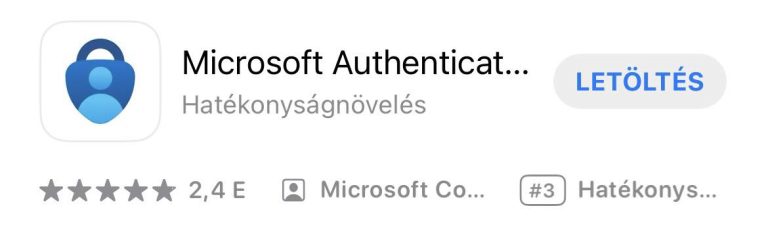
A smartphone is required to enable two-factor authentication. Depending on the operating system of your smartphone, you will need to download the following application.

  • Microsoft Authentication from the App Store for iOS and Google Play in case of Android.
Corvinus University of Budapest

How to set up the optional two-factor authentication:

  • When logged in to your Neptun account on the web interface, you can access the authentication setup by going to My Data -> Settings and clicking on the “Two-factor authentication” tab.
Corvinus University of Budapest

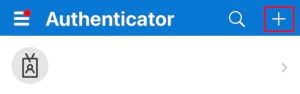
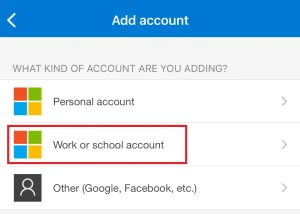
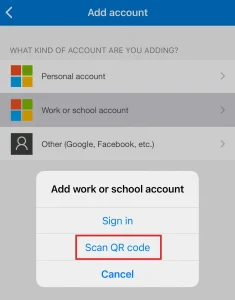
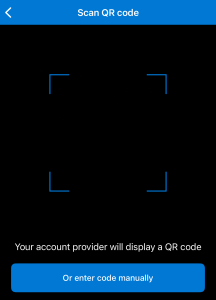
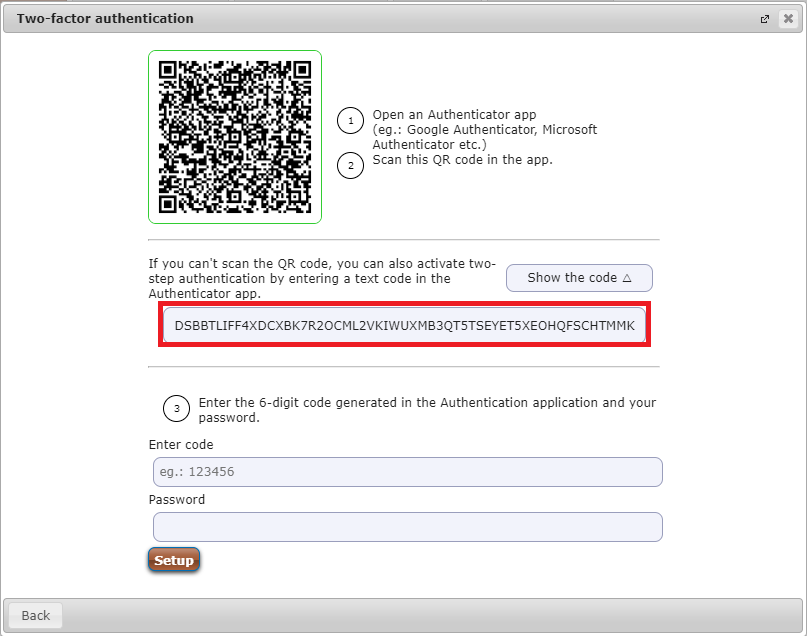
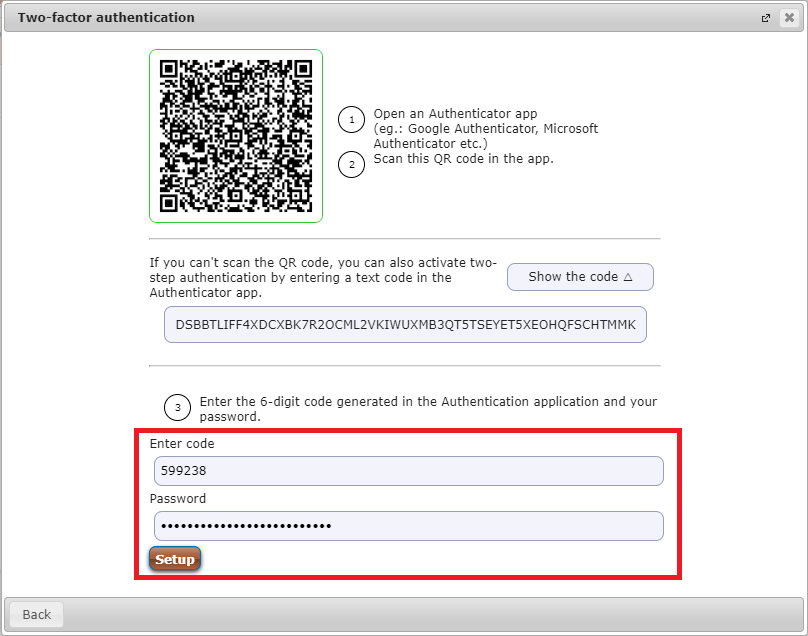
Click on the “Setup” button to start the two-factor authentication registration by scanning the QR code in the pop-up window. After opening Microsoft Authenticator, clicking on the “+sign will bring up the Add Account tab, where you can scan the QR code by selecting the “Work or school account” option.

Corvinus University of Budapest

How to login to Neptun after the mandatory two-factor authentication setup:

After entering the Neptun code and password in Neptun, you can start the two-factor authentication registration by scanning the QR code appearing in the pop-up window. After opening Microsoft Authenticator, clicking on the “+sign will bring up the Add Account tab, where you can scan the QR code by selecting the “Work or school account” option.

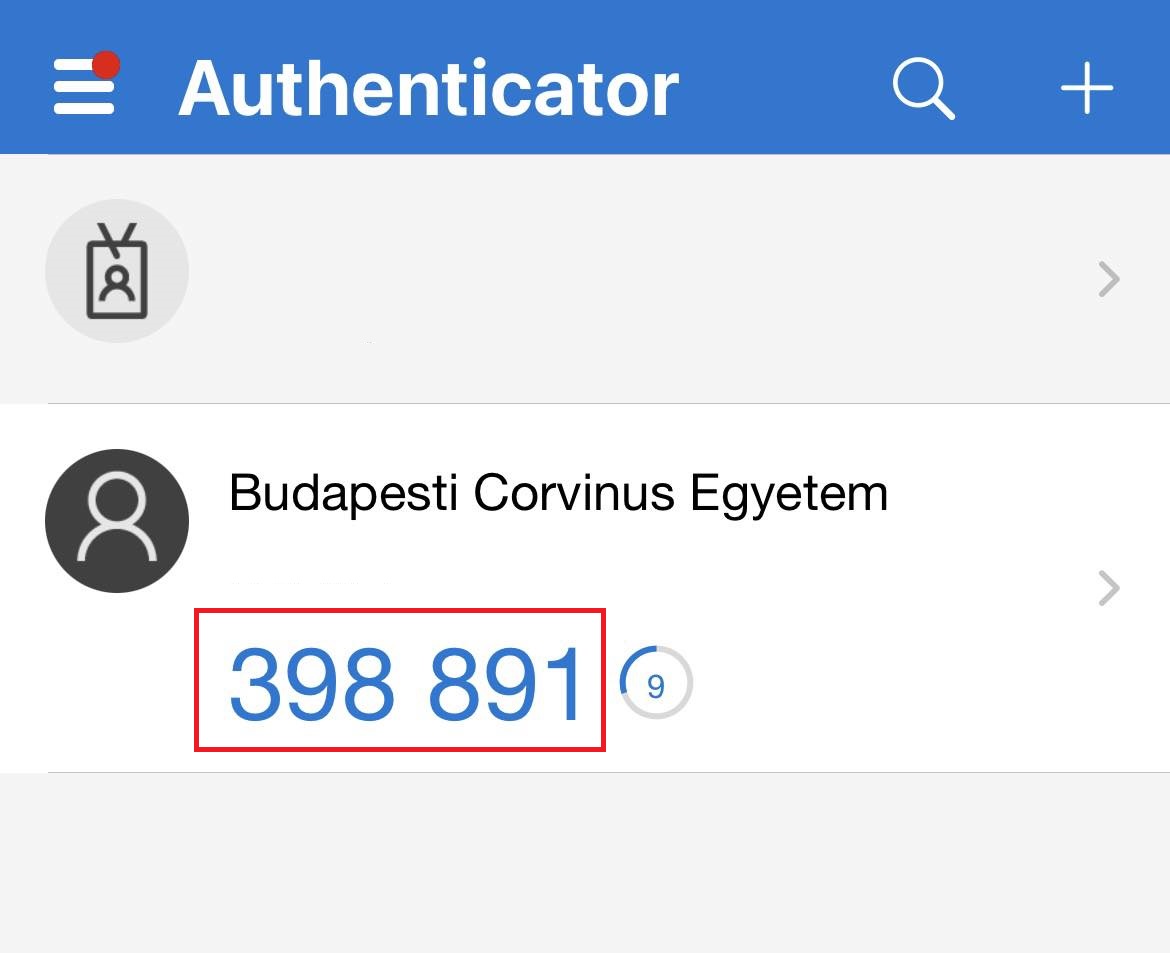
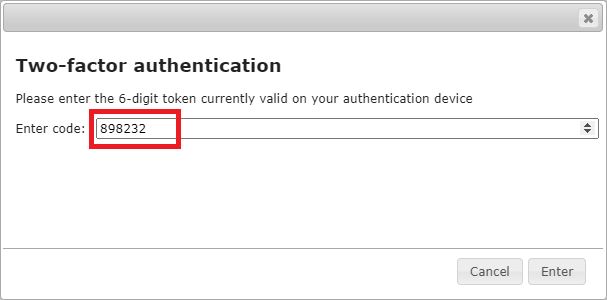
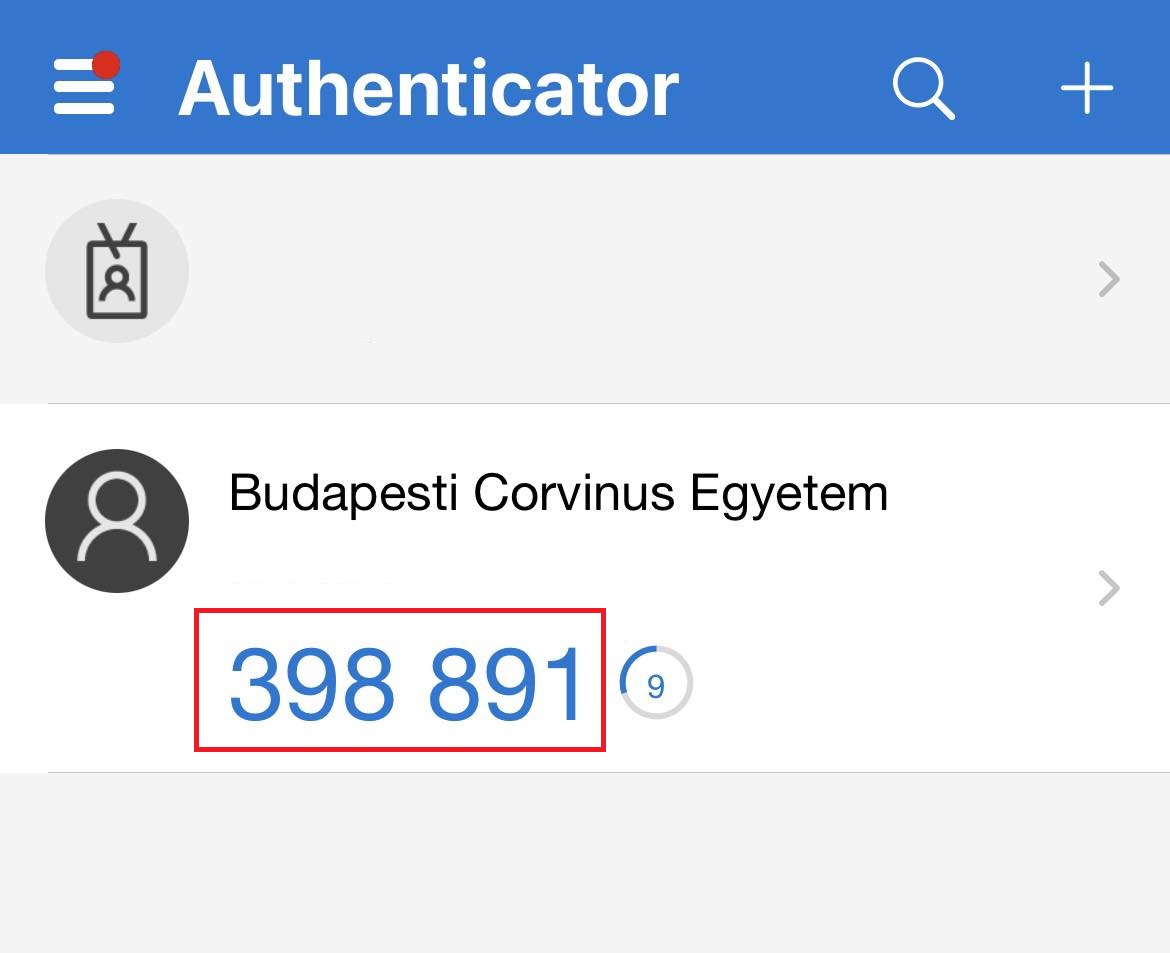
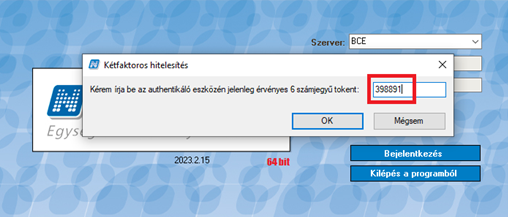
From the moment the two-factor authentication have been registered, as is the case with many other applications, you will need to enter the 6-digit code generated by the Microsoft Authenticator application each time you login to Neptun.

Corvinus University of Budapest

client interface:

Corvinus University of Budapest

If you are unable to log in due to an invalid token, you will need to try again by entering a new token.

If you encounter problems when setting up two-factor authentication and/or logging in to Neptun and you are working on the academic area, please contact Jenő Szőllősi (jeno.szollosi@uni-corvinus.hu).

If you are working in the services area, you can contact corvinusneptun@uni-corvinus.hu with your problem.

Please note that this email address is strictly for colleagues’ use and must not be shared with students.

Frequently asked questions

If you do not have a smartphone, you will need a computer to proceed the authentication. Depending on your computer’s operating system, you will need to download the following application:

Please note that in the case of this solution, you can only log in to Neptun from the computer running this code generator.

To set up FortiToken on a computer, do the following: 

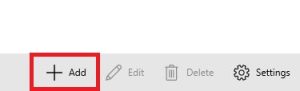
Once downloaded, open the FortiToken application and install it on your computer. When the installation is complete, click on the “+Add” button at the bottom right of the interface to start the registration process. 

Corvinus University of Budapest

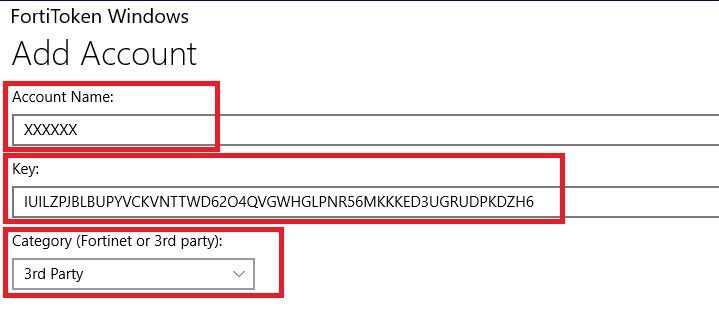
The “Account Name” field can be named as you wish (e.g., Neptun code), this will be the name of the key in the application. In the “Key” field, enter the string that you will find in the Neptun registration window when you click on the “Show the code” button in the panel. In the “Category (Fortinet or 3rd party)” field, select “3rd party”. 

Corvinus University of Budapest

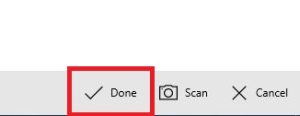
After completing the missing cells, click “Done” in the bottom right corner of the interface. 

Corvinus University of Budapest

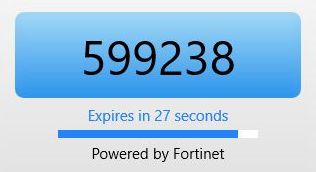
The main page of the application will then display a 6-digit token (code) which, when entered with the NEPTUN password in Neptun, will successfully set up the two-factor authentication. 

Corvinus University of Budapest

In case of loss / replacement of a smartphone (on which the authenticator was running)

  • the colleagues from the academic should contact Jenő Szőllősi (jeno.szollosi@uni-corvinus.hu)
  • the colleagues from the service area should report the loss / the change to corvinusneptun@uni-corvinus.hu. Again, this email address is for the use of colleagues only and must not be given to students.

Once the lost / new device has been reported, the two-factor authentication will be centrally deleted in Neptun to prevent unauthorised access to the account with the lost smartphone.

Important! Once the 2FA authentication has been deleted in Neptun, a new authentication must immediately be set up with another / new device to keep the account protected. When re-registering, the previous account in the authenticator app must be deleted.

If you want to register your account on multiple smart devices, simply scan the QR code that appears when you register in Neptun on all the devices you want to use for authentication in the future. 

Two-factor authentication is necessary to ensure that your personal data is as secure as possible, and that no unauthorised person has access to your Neptun account.

Copied to clipboard
×